Installing Hermes Agent
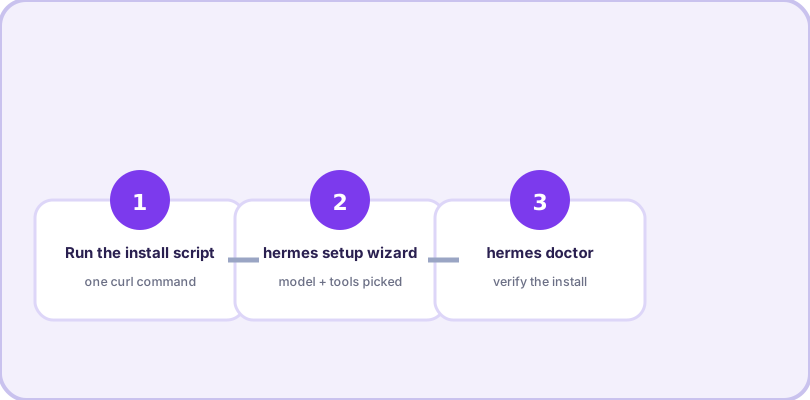
Hermes Agent installs with a single command and a short wizard. This page walks the full path: install, first-run setup, and the health check that confirms everything works.
The one-line install
On macOS and Linux (and Windows via WSL), run:
curl -fsSL https://raw.githubusercontent.com/NousResearch/hermes-agent/main/scripts/install.sh | bashThat downloads and runs the official install script, which sets up the agent and its command-line tool. When it finishes, the hermes command is on your PATH.
First run: the setup wizard
Start the interactive wizard:
hermes setupThe wizard walks you through the decisions that matter: which model provider to use (OpenRouter, Anthropic, OpenAI, DeepSeek, local models and more — see our providers guide for the full table), which terminal backend runs commands (local by default; docker, ssh and other remotes are available), and which tools the agent may use. Every choice can be changed later with hermes config edit or by re-running hermes setup for a specific section such as hermes setup model.
You can skip parts of the wizard and set values directly:
hermes config set model.default anthropic/claude-sonnet-4
hermes config edit          # open config.yaml in your editor
hermes config env-path      # where API credentials live (.env)
Config lives in ~/.hermes/config.yaml; API credentials live in ~/.hermes/.env. Keep that split in mind: settings in the YAML, secrets in the env file.
Verify with hermes doctor
The single most useful command after installing:
hermes doctorDoctor checks dependencies, config sanity and provider connectivity, and tells you exactly what is missing. If anything is off, fix it with hermes doctor --fix or follow its hints. When doctor comes back clean, you are ready for your first real task.
Platform notes
Where everything lives once installed — worth knowing before you customize:
| Path | What it holds |
|---|---|
| ~/.hermes/config.yaml | Main configuration: model, provider, terminal, tools |
| ~/.hermes/.env | Provider credentials — secrets never go in the YAML |
| ~/.hermes/skills/ | Installed and agent-created skills |
| ~/.hermes/sessions/ | Session transcripts, searchable and exportable |
| ~/.hermes/logs/ | Gateway and error logs |
macOS and Linux: the curl install is all you need. Hermes uses prompt_toolkit for its interactive UI, which wants a real terminal — any standard terminal emulator works.
Windows (native): PowerShell, cmd, Windows Terminal and git-bash all work. Two quirks are worth knowing up front: use Ctrl+Enter (not Alt+Enter) for a newline — Windows Terminal intercepts Alt+Enter to toggle fullscreen — and if config was ever saved by another Windows app, a UTF-8 BOM can cause a "No models provided" error on first run; re-saving the file as UTF-8 without BOM fixes it. More of these live in our troubleshooting guide.
Windows via WSL: works like Linux, with one classic gotcha — make sure systemd is enabled in /etc/wsl.conf if you plan to run the gateway as a background service, otherwise services die when you close the WSL window.
Keeping it current
hermes update moves you to the latest version. Your configuration, installed skills, sessions and memory survive updates — they live in ~/.hermes, separate from the program itself.
Frequently asked questions
What are the system requirements?
A machine running Linux, macOS, or Windows (native terminals or WSL), with network access. The install script handles the rest, including a Python environment.
How do I update Hermes Agent later?
Run hermes update. It pulls the latest version and keeps your config, skills and memory intact.
How do I uninstall?
Run hermes uninstall. Your ~/.hermes directory holds config, skills and memory — remove it separately if you want a completely clean slate.